Compatible with:
eufyCam 2 Pro, eufyCam 2C Pro, eufyCam 2, eufyCam 2C, eufyCam, SoloCam E40, SoloCam L40, SoloCam S230, Floodlight Cam 1080p, Floodlight Cam E 2K, Floodlight Cam 2 Pro, Video Doorbell 2K (Wired), Video Doorbell 2K (Battery-Powered), eufy Security Video Doorbell 1080p (Battery-Powered), Indoor Cam 2K (Solo IndoorCam C24), Indoor Cam 2K Pan & Tilt (Solo IndoorCam P24), Outdoor Cam Pro (Solo OutdoorCam C24), Indoor Cam Mini 2K, Floodlight Cam E340
To help you figure out why the cameras or doorbells stop recording and do not record events. This article applies to smart eufy security devices using the eufy Security App, such as cameras, doorbells, floodlight, indoor cam. Please confirm the following settings to see how it works.
1. Make sure your cameras or doorbells are powered on and online.
2. Make sure you have enabled the Camera in camera/doorbell settings.
Steps: Device Tab> ... icon> Gear icon> Settings.
3. Make Sure the Motion Detection/Detection Mode has been enabled.
Steps: Device Tab> ... icon> Gear icon> Settings> Motion detection > Turn on the Motion Detection/Detection Mode.
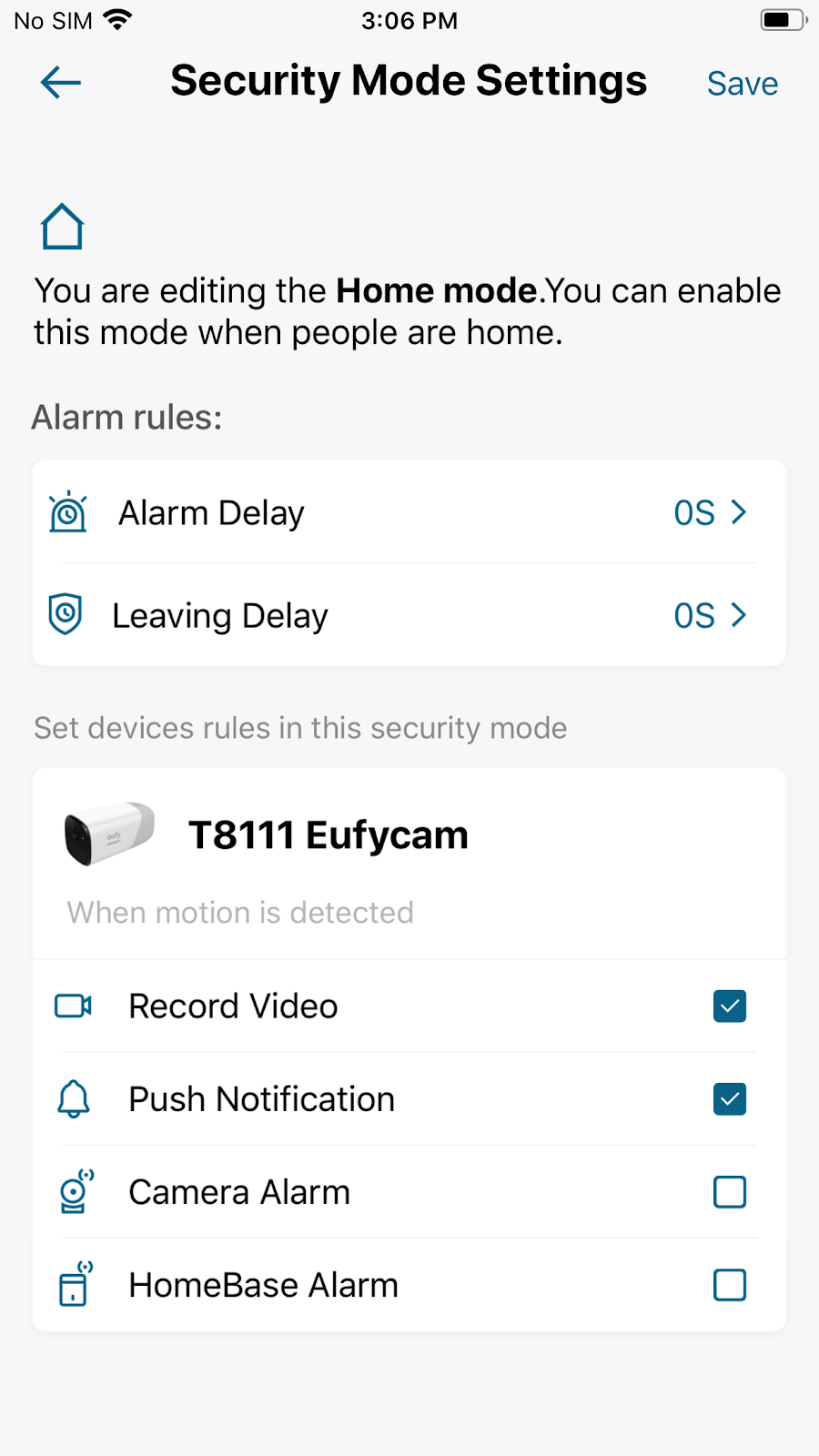
4. Make sure you have enabled the camera record under Home security mode.
Steps: Security (at the lower right corner of main page) > Home > Security Mode Settings > Enable Record Video.
5. Turn up the sensitivity level.
Steps: Slide the side menu> My devices > Camera/Doorbell Name > Camera/Doorbell Settings > Motion detection > Turn up the sensitivity level.
If you still have questions, please contact us for further assistance.
Was this article helpful?
That’s Great!
Thank you for your feedback
Sorry! We couldn't be helpful
Thank you for your feedback
Feedback sent
We appreciate your effort and will try to fix the article