Applicable to:
Smart Scale P2 Pro, Smart Scale P3, Smart Scale C1, Smart Scale(T9140), Smart Scale P2
There are 3 ways to view the weight trends and data history:
- Simply click the three dots on the top right and you will see the trends and history button where you can enter the trends page and report history page.

- For T9140/T9146/T9147, you can click anywhere on the measurement data card and you will enter the Trends view, where you can find the data trends for day/week/month/year. You can enter the report history by clicking the history at the bottom of the page.
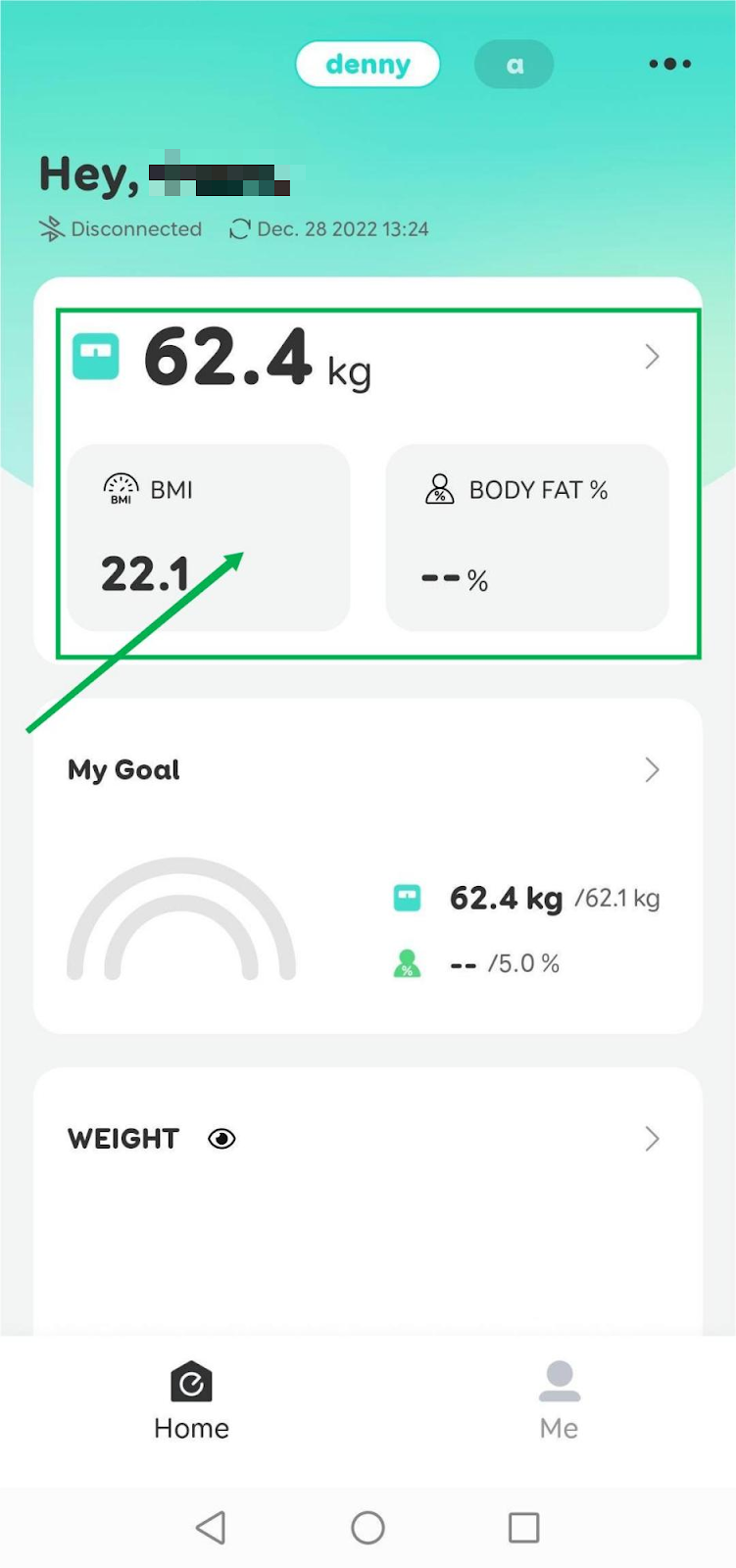

- You can click the ">" button on the weight/data card, then you will enter the trends view. You can enter the report history by clicking the history at the bottom of the page.


Currently, we only support trends view for weight, BMI, body fat, and muscle mass. More measurements will be added in the future.

If you'd like to delete any measurements, click the edit on the right top and choose the measurements that you would like to delete, then select "Delete" at the bottom right corner.


If you have any further questions regarding the EufyLife app, please contact us.
Was this article helpful?
That’s Great!
Thank you for your feedback
Sorry! We couldn't be helpful
Thank you for your feedback
Feedback sent
We appreciate your effort and will try to fix the article