Compatible with:
eufyCam 2 Pro, eufyCam 2C Pro, eufyCam 2, eufyCam 2C, eufyCam, SoloCam E40, SoloCam L40, SoloCam S230, Floodlight Cam 1080p, Floodlight Cam E 2K, Floodlight Cam 2 Pro, Video Doorbell 2K (Wired), Video Doorbell 2K (Battery-Powered), eufy Security Video Doorbell 1080p (Battery-Powered), Indoor Cam 2K (Solo IndoorCam C24), Indoor Cam 2K Pan & Tilt (Solo IndoorCam P24), Outdoor Cam Pro (Solo OutdoorCam C24), Indoor Cam Mini 2K, Video Doorbell Dual 2K (Battery-Powered), Floodlight Cam E340, Video Doorbell E340, Indoor Cam C220
To make sure you can receive notifications from the eufySecurity app, please enable the below permissions settings. If you can get notifications, please ignore this guide.
Set Up Notifications
1. Add eufySecurity to unmonitored/whitelist apps
Go to phone Device Management > Battery > Unmonitored apps > Add apps > Select and add eufySecurity. Different phone models may have varying settings, please note this step is to make sure the app does not go into sleep mode on your phone.
2. Allow Notification
Go to phone settings > Notifications > Allow eufySecurity to enable notification. Or you can go to eufySecurity app > side menu > Settings > App Permissions > Notifications > Turn on switch/Allow Notifications.
3. Enable Push Notification for Security Mode
Please go to eufySecurity app > Security Mode > Select Camera/Sensor Name > Home/Away > Security Mode Settings > Push Notification.

Set Different Notification Type
No matter how different your security device is, you will see “Notification” in camera/doorbell settings in the App. Click the Notification and you will see the Notification contents extension or App alert Tones. For doorbells, there are two more parts: the scenario to receive notification and the corresponding video/Live View when clicking the notification. Let’s see the details according to the App UI page:

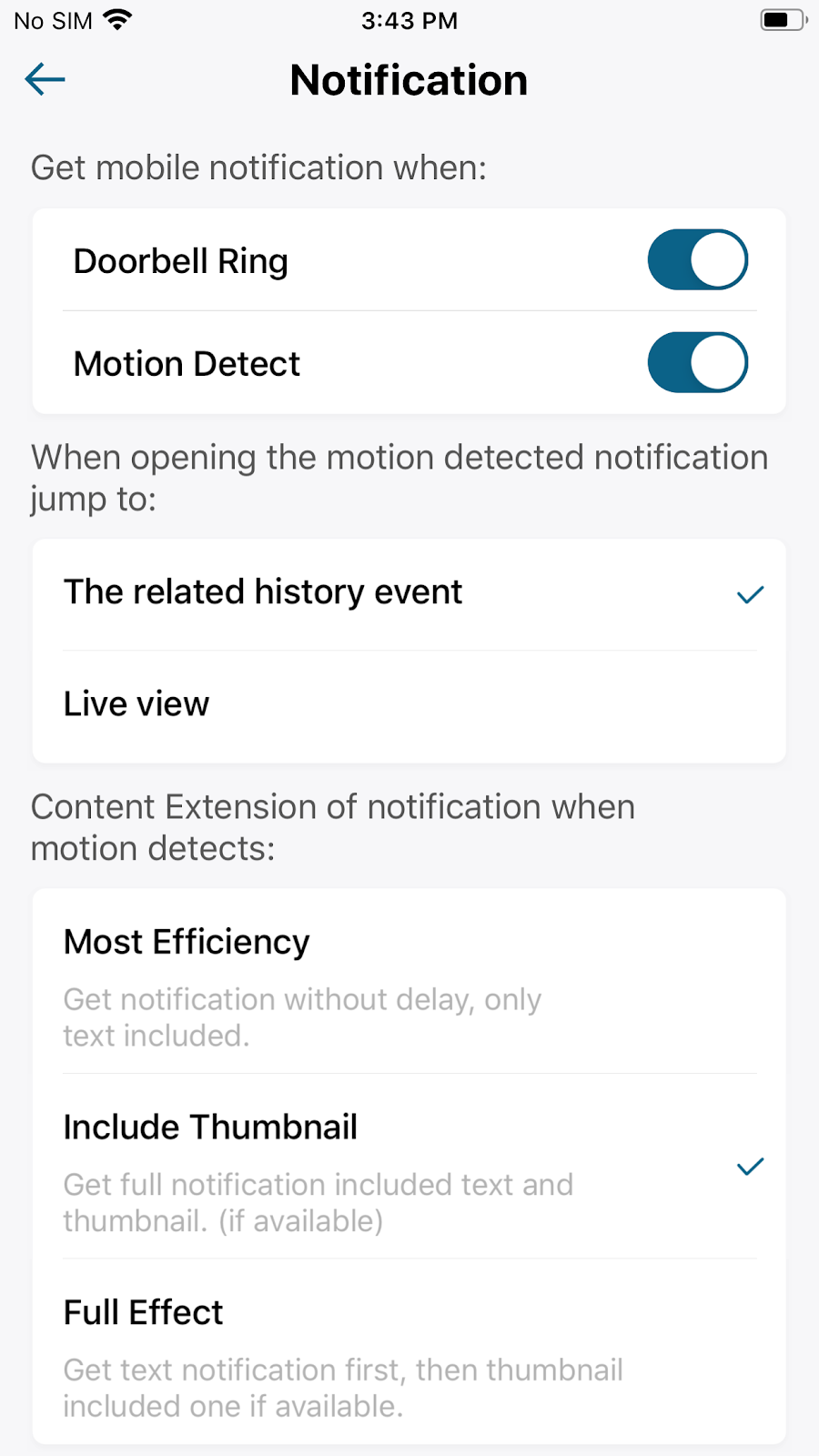
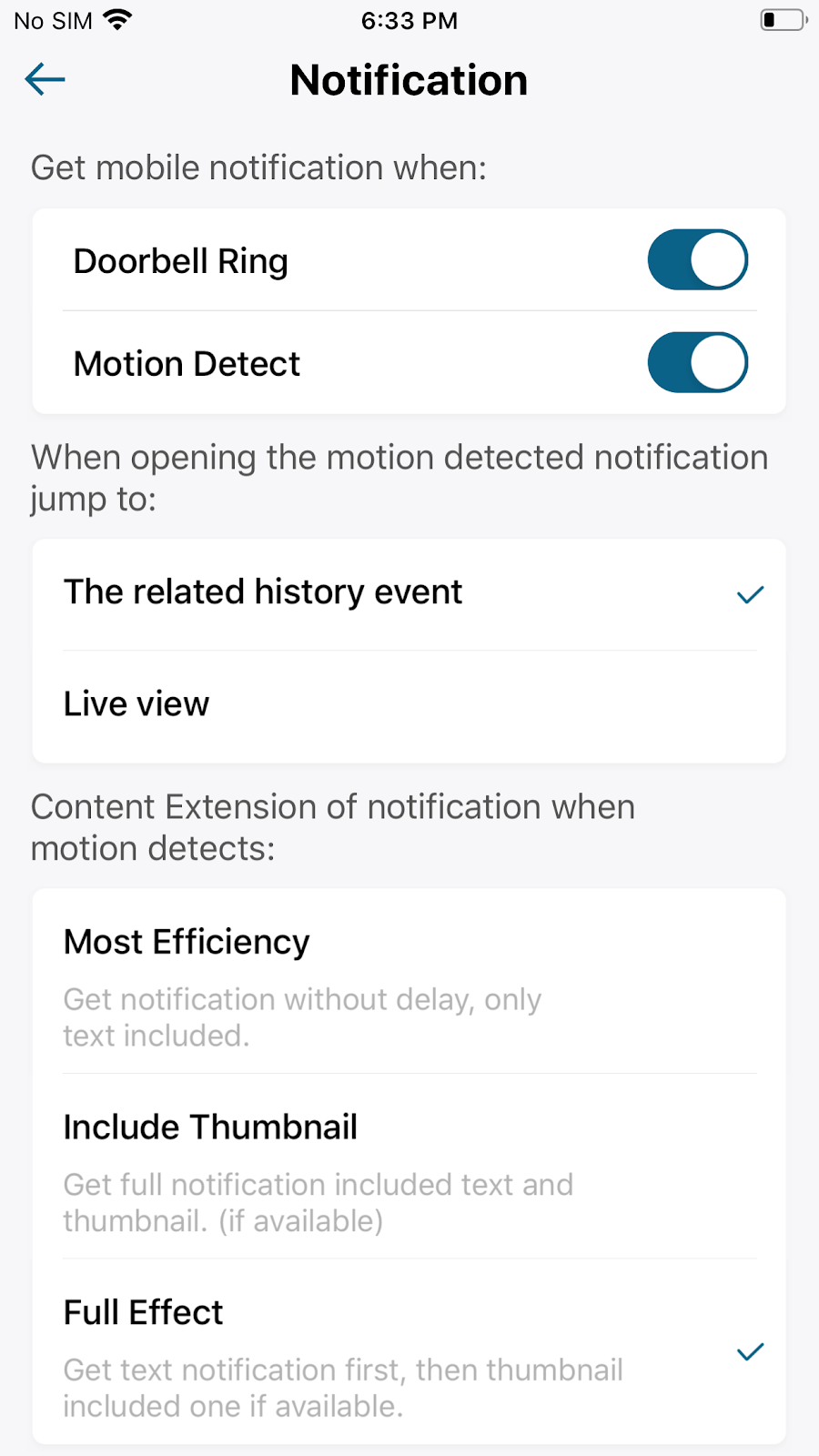
1. Content Extension of Notifications
- Most Efficiency: You will get notifications on your phone without delay as it only concludes text.

- Include Thumbnail: Get full notification including text and thumbnail if the thumbnail is available.

- Full Effect: Get text notification first, then the thumbnail includes one if available.
2. App Alert Tones
- Motion Alerts: When Motion is detected, your phone will receive a notification with tone. Adjust the tones according to your preference.
- Ring Alerts (doorbell only): When someone drops by and presses the doorbell, your phone will receive a notification only for ring alerts.
3. Get Mobile Notification when (doorbell only)
- Doorbell Ring: You will receive a doorbell ring notification on your phone when you enable this function.
- Motion Detect: You will receive a motion detection notification on your phone when you enable this function.
4. When Opening the motion detected notification jump to (doorbell only)
- The related history event: Once you tap the notification, you will jump to watch the history event when you choose this function.
- Live View: Once you tap the notification, you will jump to see the Live view page when you choose this function.
Learn More
If you have any questions regarding how to set up notifications, please contact us for further assistance.
Was this article helpful?
That’s Great!
Thank you for your feedback
Sorry! We couldn't be helpful
Thank you for your feedback
Feedback sent
We appreciate your effort and will try to fix the article