Compatible with:
eufy Baby Monitor E21, S330 eufyCam(eufyCam 3), S300 eufyCam(eufyCam 3C), eufyCam S3 Pro Add-on Camera, eufyCam S3 Pro, eufyCam 2 Pro, eufyCam 2C Pro, eufyCam 2, eufyCam 2C, eufyCam, eufyCam Solar Panel, HomeBase 3, Backup Battery for HomeBase 2, eufy SmartTrack Card E30, eufy Smart Lock C34, eufy Smart Lock E31, eufy Smart Lock C30, eufy Security Video Doorbell 1080p (Battery-Powered), eufyCam E330 (Professional), Indoor Floor Lamp E10, Indoor Cam S350, Indoor Cam C220, eufy Indoor Cam E30, Indoor Cam 2K Pan & Tilt (Solo IndoorCam P24), Indoor Cam 2K (Solo IndoorCam C24), Indoor Cam Mini 2K, Dog Camera D605, Outdoor String Lights E10, Outdoor Spotlights E10, Outdoor Pathway Lights E10, Permanent Outdoor Lights E22, Floodlight Cam E340, eufy Floodlight Camera E30, Floodlight Cam 2 Pro, Floodlight Cam 1080p, Floodlight Cam E 2K, S100 Wall Light Cam, Solar Wall Light Cam S120, S220 SoloCam, SoloCam C210, SoloCam S230
Brief Introduction:
The eufy App has undergone a comprehensive visual and experiential upgrade based on the original eufy Security App. It not only includes all the features of eufy Security but also integrates the key functionalities of eufy Clean, eufy Life, eufy Baby, and eufy Pet, offering users a brand-new integrated experience.

Specific Tab Feature Located at the Bottom Introduction
Add Device & Set Up
Device List: On the left, you can switch between different categories, including Security, Clean, Care, and Light. On the right, you can choose specific device types to add device.
Add Device Entrance: The "+" button in the upper right corner of the Home page or the "Add Device" button on the Home page.

Support Device Type
Category | Device Type |
Security | Homebase/Camera/Doorbell/Lock/Smart Storage/Tracker/Alarm System |
Clean | Robot Vacuum (click https://support.eufy.com/s/article/Can-t-find-devices to learn more about the Supported models) /Robot Lawn Mower |
Care | Smart Scale/Breast Pump/Baby Camera/Smart Sock/Pet Camera |
Light | Lights |
Home
The Home interface serves as an information hub. All added devices are displayed on the Home page, allowing you to monitor their status at any time. Additionally, you can manage each device, including settings for device name, Wi-Fi configuration, device sharing, device removal, and various functional settings such as motion detection, sound detection, and more.

Event
Event Display (Primarily for Security Devices)
It show various events detected by devices in chronological order, such as the detection of human, someone opening a door, a doorbell being pressed, or a robot vacuum completing a cleaning task. Each event includes information about the device involved, the time it occurred, and a description of the event. For camera devices, it also displays a video preview of the event, making it easy to quickly understand and browse through various incidents.


Event Management: Users can quickly delete events they no longer care about in batches.

Event Filter: Users can filter events based on date, device type, event type, and other criteria to quickly find the information they are interested in.

Event Streaming: For camera devices, users can view the video streams related to specific events and perform actions such as downloading, recording, sharing, reviewing playback, and deleting. The features supported may vary slightly depending on the device.
Service
The Service page includes three features: AI-Learning, Protection Plan, and Cloud Backup. Please note the AI-Learning is Available for users with HomeBase. Once activated, it enables facial recognition and cross-camera tracking.
Protection Plan: Open to US users only. Once activated, it provides timely notifications to users via notification/phone in specific emergencies and automatically dispatch police.
Cloud Backup: After subscribed, data can be backed up to the cloud to prevent data loss or damage.
Smart
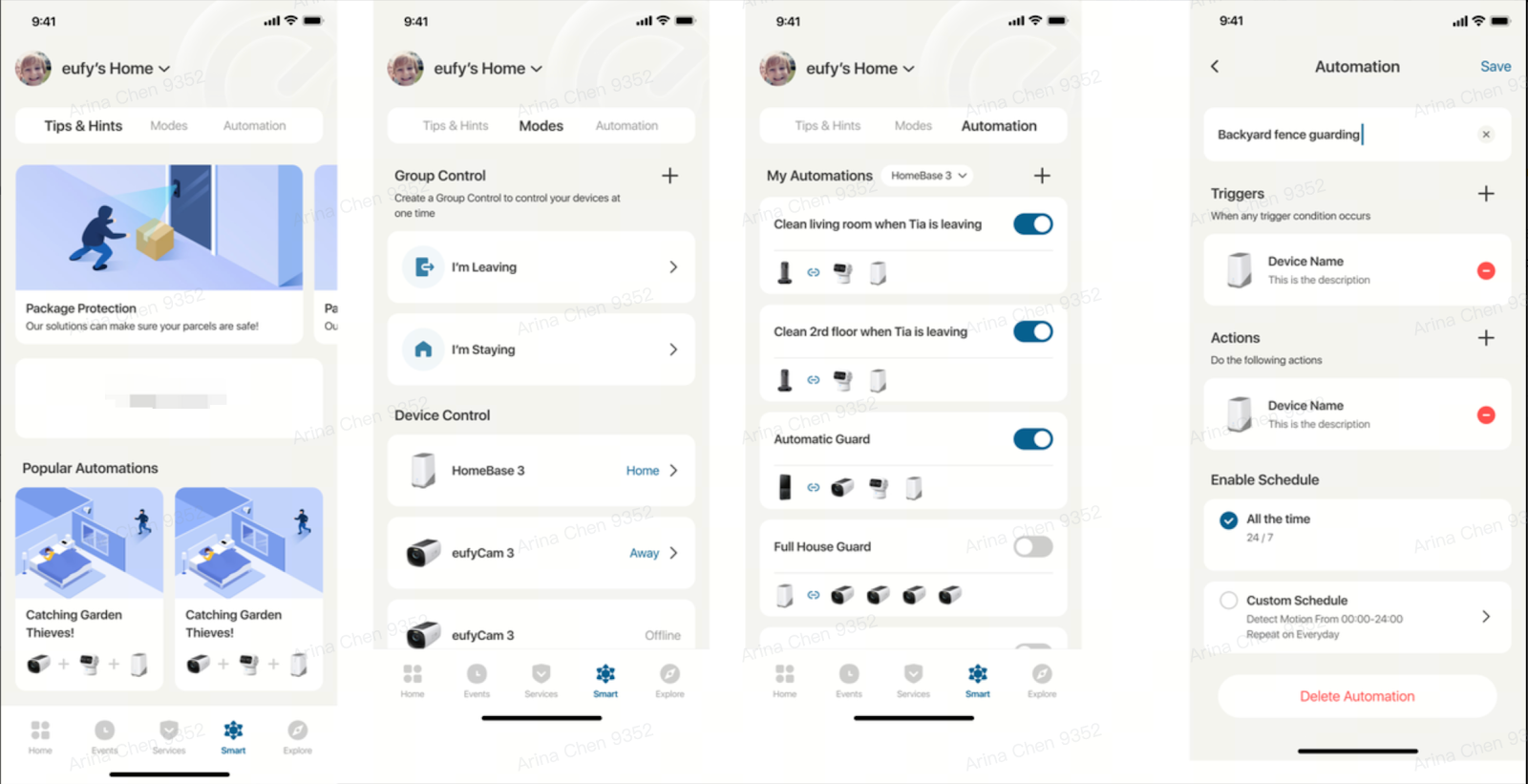
Group Control: In the Modes module, users can create groups based on their own scenarios (such as away from home, returning home, etc.) to control devices at one time. For example, when leaving, you can turn on all cameras and start the robot vacuum to work.
Device Automation: You can establish interconnections between various devices. For instance, when the doorbell rings, it can trigger the front door camera to start recording. Currently, device automation only supports interconnections between Security devices, but it will be expanded to all categories in the future,with an expected launch in Q1 of 2025.
Explore
What is Explore feature: The Explore page primarily features the App Market, where users can purchase various eufy products and services.


App Feature Comparison
eufy Security APP:
After logging in, In new eufy app, the homepage (UI + path changes) will be updated as follows:
Switch to the security homepage
Add "service" and "smart" sections
Remove the "edge" section and merge it into the "smart" section
Remove the "security" section and merge it into the "smart" section


Manage Home (Only UI changes)


Add Device Page (UI changes + Functionality changes)
Functionality changes:
The new eufy app supports one-click QR code scanning to add a device without needing to select the device path
The new eufy app supports searching by device name


Service Page - This is a new page in the new Eufy app. Additions to this page include:
Service tab
Entry point for Face Management

Smart Page (UI changes + path changes)
Additions:
New "smart" tab
Modifications:
The entry point for setting Security mode has changed from Home > Security > Modes to Smart > Modes
The entry point for setting Automation has changed from Home > Security > Automation to Security > Automation


Sidebar Changes (UI + Path)
Deletions:
Control Center
Modifications:
The entry point for Face Login has changed from App Side Bar -> Control Center -> Face Login to App Side Bar -> Avatar -> Face Login
The entry point for Two-Factor Authentication has changed from App Side Bar -> Control Center -> Two-Factor Authentication to App Side Bar -> Avatar -> Two-Factor Authentication
The entry point for Login History has changed from App Side Bar -> Control Center -> Login History to App Side Bar -> Avatar -> Login History
The entry point for Do
Was this article helpful?
That’s Great!
Thank you for your feedback
Sorry! We couldn't be helpful
Thank you for your feedback
Feedback sent
We appreciate your effort and will try to fix the article